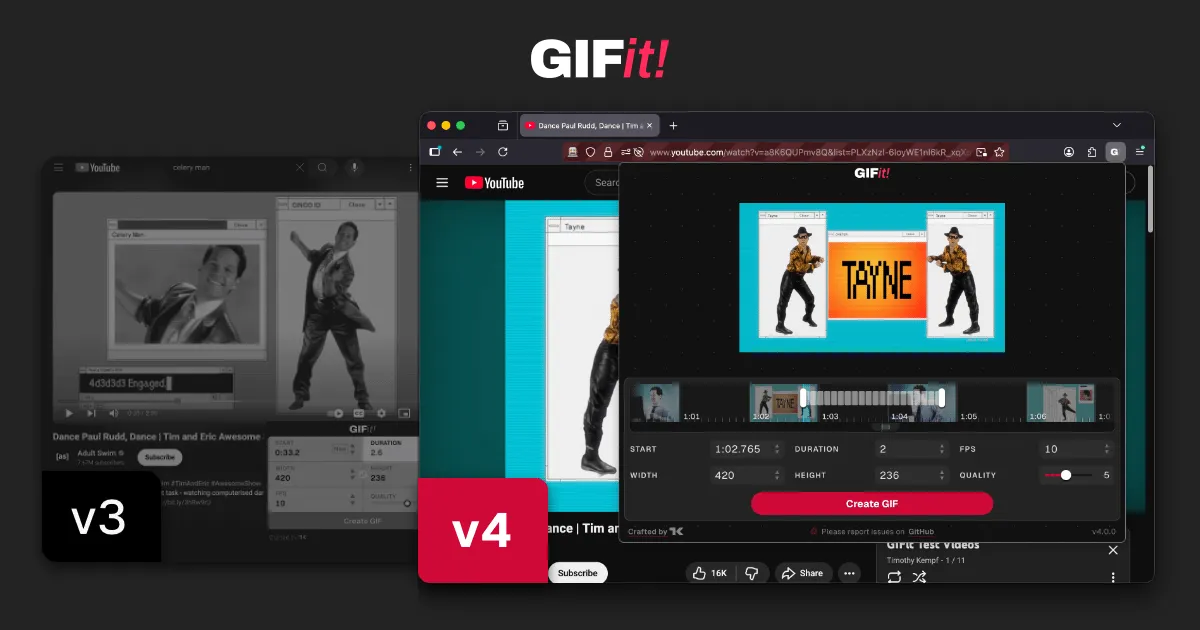
Why change GIFit so drastically?
Recent changes to YouTube’s interface have made it difficult (sometimes, impossible) to use v3 of GIFit due to pernicious z-index issues. Unfortunately, after much experimentation I was unable to get consistent results injecting the GIFit trigger button into YouTube’s markup.
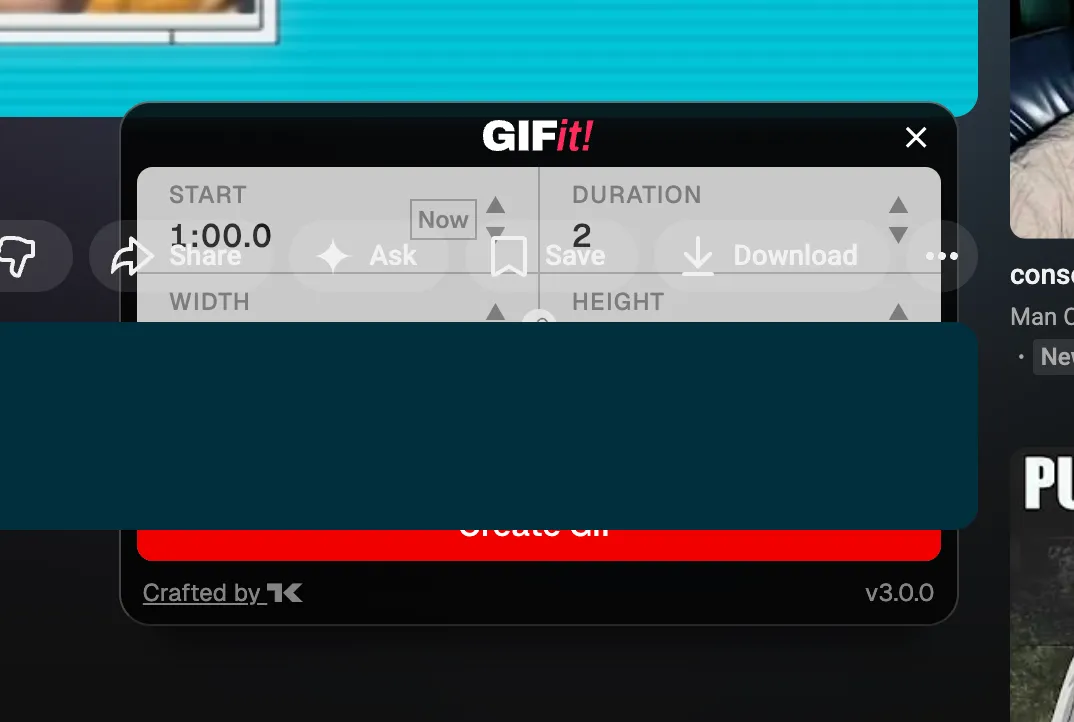
I can see why user ratings for the extension have been plummeting.
With the quick fix looking increasingly unlikely, I decided to take the advice of one of my users:
I’d recommend some sort of external dialog so that the current page layout doesn’t impact the ability to get focus on the panel.
I quickly got to work prototyping a version that could work in a popup-style extension. Luckily, a combination of the structure of WXT and the brute force of Google Gemini (via Antigravity) made this a quick experiment.
Building the V4 user experience
The extension’s new paradigm required rethinking its UX. This bold unreleased implementation served as a good starting point:
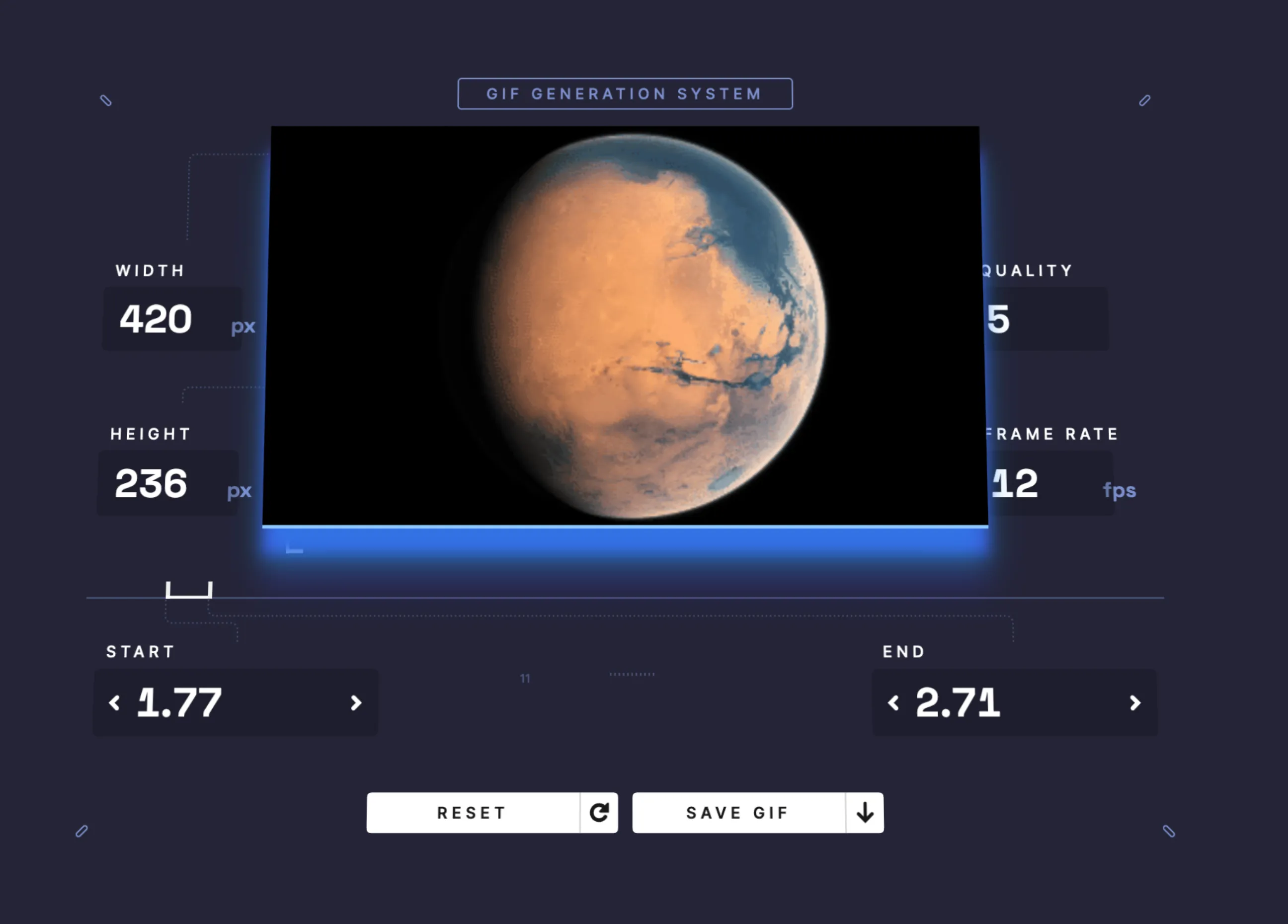
An old prototype build of GIFit! from 2021. I’ve always wanted to add an interactive timeline to the configuration panel—now’s the time!
The maximum dimensions for a browser extension are 800x600, so I elected to use all the available space to build the best possible user experience. You never know how big someone will want their GIF to be, after all.
Now that the popup is appearing on top of the page (and possibly almost completely obscuring the video) a preview needed to be added. To achieve this, the extension’s content script converts the target video’s current frame into a data URL and sends it to the popup.
if (message.type === 'CAPTURE_VISIBLE_FRAME') {
  // get a reference to the active video element
  const video = getVideoElement();
  if (video) {
    // create a canvas to copy image data to
    const canvas = document.createElement('canvas');
    canvas.width = video.videoWidth;
    canvas.height = video.videoHeight;
    const ctx = canvas.getContext('2d');
    if (ctx) {
      // draw the video's image data to the canvas
      ctx.drawImage(video, 0, 0, canvas.width, canvas.height);
      // convert the data to a data URL and send it back to the popup
      sendResponse(canvas.toDataURL());
      return;
    }
  }
  sendResponse(null);
  return;
}
Next came the creation of the timeline component. Without the YouTube player interface to visually scrub through the video, the user needed a way to select the portion of the video they wanted to convert into a GIF. Popular meme-style GIFs are somewhere between 2-5 seconds long, so the timeline’s “viewport” is about 6 seconds “wide”.

Then, a draggable selection representing the start time, end time, and frame rate of the GIF to be generated.

Finally, a “minimap” style scrollbar sits below the timeline to help the user understand what portion of the video is in view—along with a tiny indicator of where the current selection is.

Once the new features were integrated, I spent the next couple weeks polishing:
- Progressively cleaned up the UX and UI, focusing on clarity and simplicity (The user’s just here to make a GIF, after all)
- Ensured every bit of the application was linted, typed, and tested
- Improved the optimization of the generated GIF with a global color table
- Improved the performance of the application, eliminating react rendering issues and inefficiencies in GIF generation
Adding a live demo to the extension’s homepage
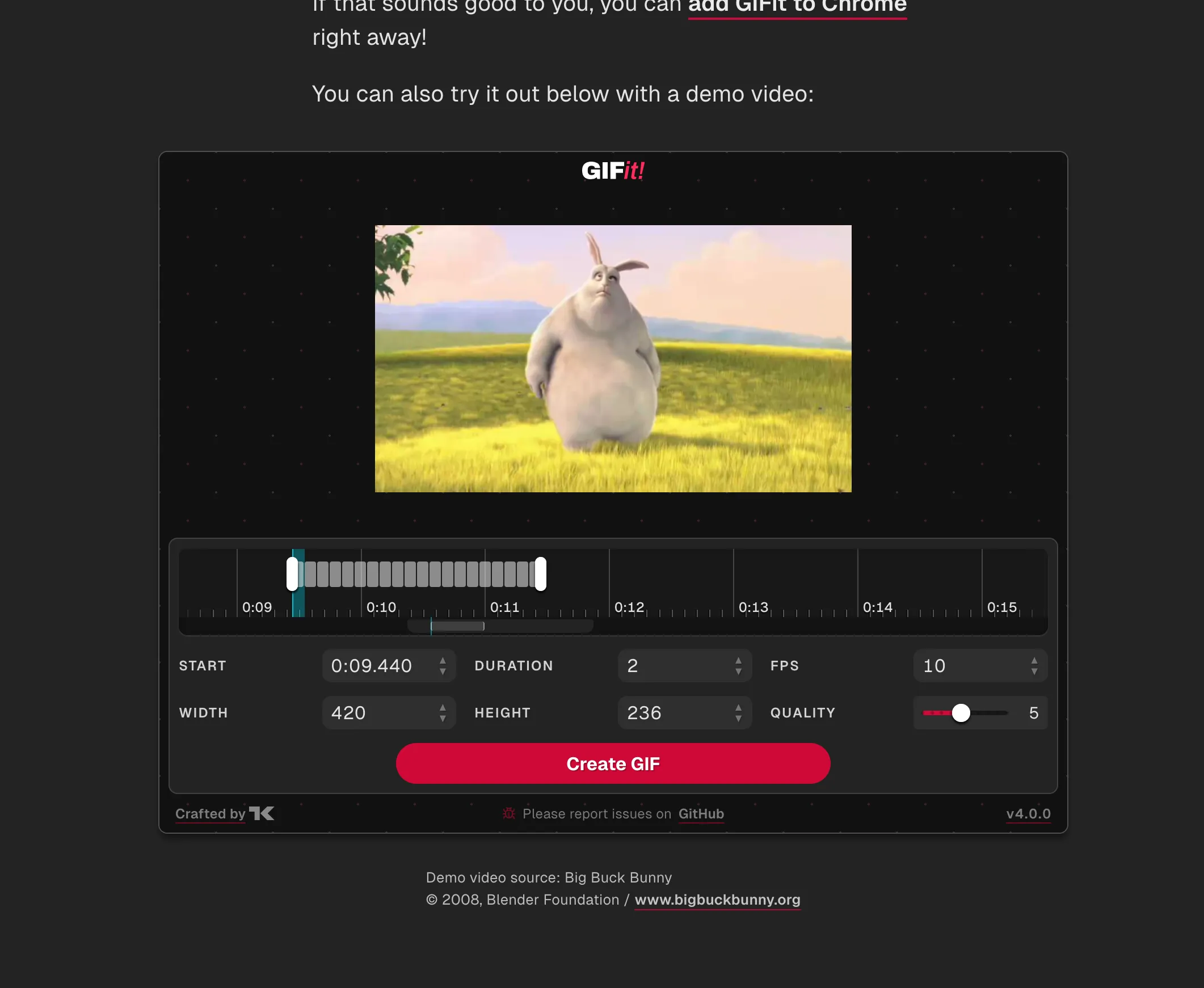
“Show, don’t tell” applies to design just as much as it does writing. Since the GIF generation application only requires a reference <video> element, I knew I could get a demo version working on the promo site.
…but it’s a hassle and a half to abstract something so deeply tied to the extension’s build. I needed a quicker way to iterate.
So I leveraged Antigravity and v0 to quickly experiment with ways to split the code between the demo site, extension, and shared components. After a couple quick experiments, I settled on migrating to a monorepo using npm workspaces to keep everything organized. Within an hour, I had a working non-extension version of GIFit ready to go with the trailer for the OG open film, Big Buck Bunny. (It’s probably a bad idea to include copyrighted, more memable content in the GitHub repo)
Guiding v3 users to the new v4 experience
GIFit! has been an inline content script for many years, so it was essential to give existing users a heads-up (and explanation) for the move to a new entry point.
Luckily, the web extensions platform provides utilities for detecting whether a user is upgrading from an older version or is a new install.
// Run this on extension install
browser.runtime.onInstalled.addListener((details) => {
  // If the user is upgrading from v3...
  if (
    details.reason === 'update' &&
    details.previousVersion?.startsWith('3.')
  ) {
    // Set the notice flag in their browser's user storage
    browser.storage.sync
      .set({ [MIGRATION_NOTICE_KEY]: true })
      .catch((error: unknown) => {
        logger.error('Failed to set migration notice flag', error);
      });
  }
});
One common approach extensions take is to forcibly open a new tab with an explanation of the new version. It can be an unpleasant user experience. Far too often, extension authors don’t bother to use browser.storage.sync (as above), so users end up with magically opened tabs they don’t want multiple times!
To avoid that, I just open a little popup at the bottom of pages where the user might use GIFit!, until they dismiss it. Then it’s gone for good!
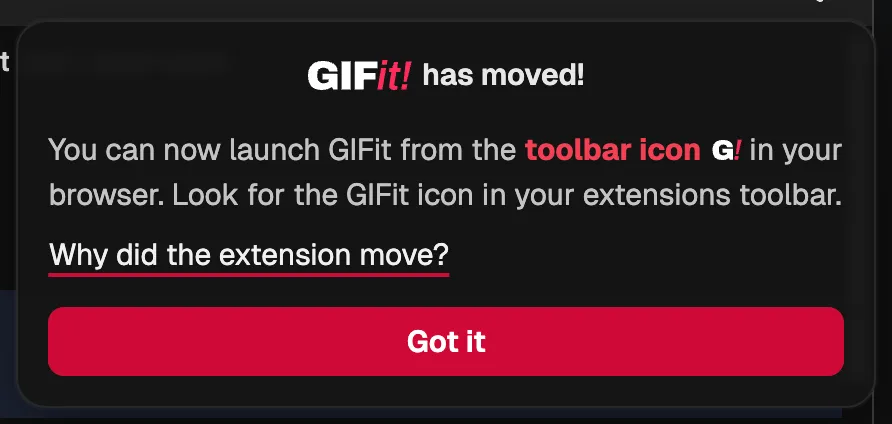
A change that big deserves an explanation, so curious users get a link to this very blog post.
Future plans for GIFit!
With GIFit’s new interface and monorepo structure come new opportunities! The extension’s users have had many requests over the years (and I’ve had a few ideas of my own):
- GIF captioning support, with the ability to add and time captions that appear in the final animation
- Support for mobile resolutions (the interface is currently only optimized for the 800x600 browser popup format)
- The ability to edit existing GIFs
- Advanced GIF options, like color count, dithering pattern, and local vs global color tables
- Light mode support (since it’s essentially dark mode by default!)